Enable 2FA in MyPayter
You use two-factor authentication (2FA) to protect the terminals, transactions, and settings managed by your users in MyPayter and MyPayter Test.
With 2FA, a password alone is not enough to log in. Someone who steals, guesses, or reuses a user's password still needs a code from that user's mobile device to log in to MyPayter. This means that a leaked password does not expose access to your terminals through MyPayter. When you enable 2FA, users log in to MyPayter with their password, then validate their identity with a six-digit code from an authenticator app.
Do not enable 2FA for API users. An API client cannot enter an authentication code, so 2FA blocks its access to MyPayter. If you enable 2FA for a domain, disable MFA for each API user you create in that domain afterward.
This page shows you how to enable 2FA for all new users in a domain and for individual users. It also shows how users set up and use 2FA login.
Prerequisites
To enable 2FA in MyPayter, you need:
- Domain admin access to MyPayter
- The name of the domain or the users to enable 2FA for
Enable 2FA for domains or users
You enable 2FA either for all new users in a domain, or for a single validated user. That is, a user who has already logged in to MyPayter and created a new password. Each user has a Two-factor authentication setting that defines whether they need an authentication code to log in. Enabling 2FA for a domain turns on MFA only for users created after you enable it. To enable 2FA for existing users in the domain, you enable it for each existing user individually.
The change to MFA is applied when the user logs out of MyPayter, or at the user's next login. A user who is already logged in keeps their session until they log out or the session expires.
You enable MFA for:
- All new users in the domain
- An existing user
-
Open the domain
- Log in to MyPayter, then click Domain. You see the list of domains you have access to.
- Select the domain to enable 2FA for.
-
Add the 2FA setting
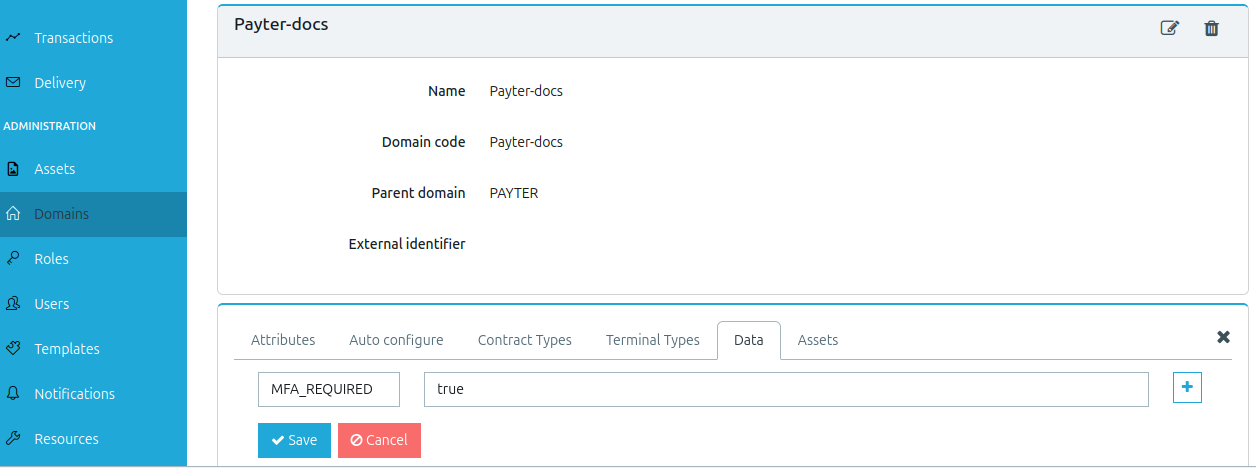
- Click Data, then click
 . MyPayter adds a new row to Data.
 - In the new row, set the key to
MFA_REQUIREDand the value totrue. - Click Save.
- Click Data, then click
MyPayter now enables 2FA automatically for every user you create in this domain. To enable 2FA for
existing users in the domain, you enable it for each user individually. To disable 2FA for new users again, delete
the MFA_REQUIRED row from Data, and click Submit.
-
Find the user
- Log in to MyPayter, then click Users.
- Search for and select the user to enable 2FA for.
-
Enable 2FA
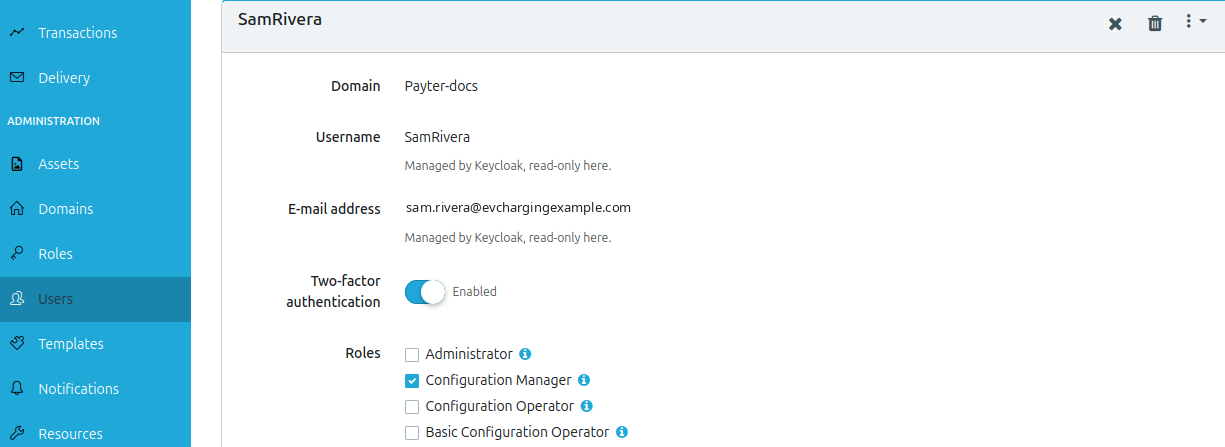
- Click , then toggle Two-factor authentication to Enabled.
- Click Submit.
- Click
You have enabled 2FA for the user. To disable 2FA again, disable MFA in the user settings, and click Save.
User login with 2FA
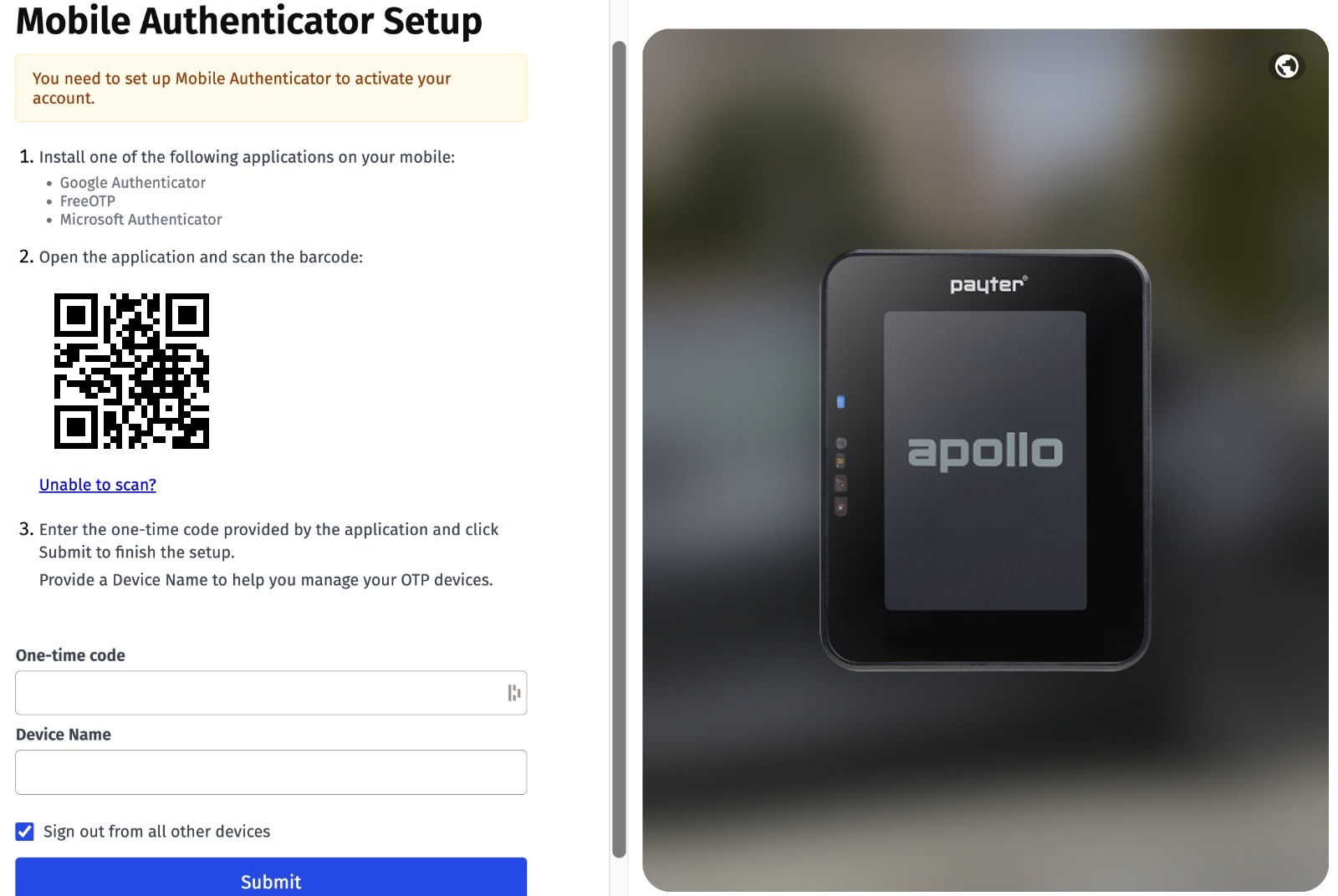
The first time you log in after 2FA is enabled for you, MyPayter shows you a QR code to scan with an authenticator app. After that, you need your password and authentication code each time you log in:
-
Login to MyPayter
Open MyPayter, enter your email address and password, then click Sign In.
You are presented with the My Authenticator Setup screen.
-
Link the authenticator app
Scan the QR code with your authenticator app, enter that One-time code and Device Name, then click Submit.
MyPayter logs you in. You are asked for a One-time code for all subsequent logins.