Element Overview
The Role of Elements
Each Element is an object that follows specific rules, and often has specific configurable settings. Some elements can be Parents of other elements, with the child element 'inside' the parent. Each element will have a specific role, and a specific value. The value is the component with can then be dynamically altered.
Examples
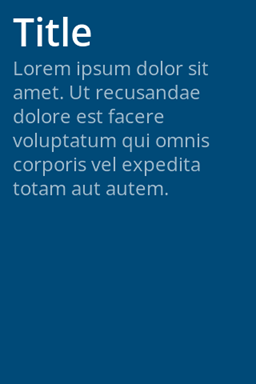
In the above, there are three visible elements.
| Element | Value |
|---|---|
| QR Code | www.example.com |
| Title | Title |
| Subtitle | Subtitle |
Each of these has been configured to be a specific size, location and colour, and these are typically fixed. The value of each however can be dynamically set via either the Cloud Payment Service or the Payter Session Protocol.
Element List
| Element Name | Parent | Description |
|---|---|---|
label | No | A text field, where the value is a string and displayed according to the size of the label and the fontSize attribute, as well as several others. |
image | No | An image which will be displayed in it's original size, and aligned at the top left coordinates indicated in the configuration. |
button | Yes | A box on screen that when pressed will report this to the controller. A button element can contain Child elements, most commonly a label or image element. Larger buttons can contain multiple elements. |
container | Yes | A visible or invisible 'box' on screen. Containers allow for the elements inside to be aligned or justified differently, or simply formatted to look distinctive. |
qr | No | A dynamic QR code that can be shown anywhere on screen, and in a variety of sizes. A minimum size of 75 pixels is recommended for a QR code however. |
progress | No | A bar that shows percentage progress as a bar. |
spinner | No | An animated spinner indicating processing/authorising/waiting. |
button-array | No | An array of buttons that will create 'n' number of the same button. Useful when trying to create multiple buttons such as a product selection screen. |
Examples of each screen can be seen in their dedicated page in the Screen Elements section of this guide.